ZIP Repair Instruction
Additional Instructions
Information about ZIP Repair utility: where to download, how to install, how to register, where to purchase the serial...


How to use the ZIP Repair utility
There you can find the brief description of the recovery
procedure. ZIP Repair operation performed in several steps:
1. Select damaged ZIP file
2. ZIP file format analyzing
3. Select items to recover
4. Select destination folder to save repaired files
5. Repair, extract and save the recovered files
6. Displaying the process report


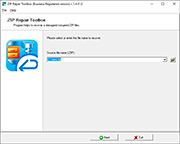
1. Select damaged ZIP file

 As a first step the user should select a damaged Zip file.
It is able to choose the damaged file at the file system using standard Windows dialog
Additionally, the ZIP file can be pointed using special "Source file name" field.
Previously recovered file name can be selected using the same field.


2. Damages analyze

Program performs this step automatically. The program scans the entry ZIP archive structure and displays the information it is found. The scan operation can take a while, it depends on archive size, damages level and computer performance. This step can be terminated by pressing the "Cancel" button.


3. Select items to recover

When the analyze stage is done, the program displays a folder structure and all files were found. The user should select items to be repaired and saved. It is recommended to press "Check good" button to select only fully recoverable files. It is able to choose the partially recovered files also. Please notice that partially recovered files may not functioning properly.

4. Select destination folder

In this step the user should select the storage folder for recovered data. The program will save repaired files and folders to this location. It is possible to select the directory using either the standard Windows dialog or the history list. The tool saves data to the ZIP repaired folder located in the same directory where the source ZIP archive is stored.


5. Repair, extract and save

In the last step the program extracts data from the corrupted ZIP archive and saves it to the folder selected in the previous step. After that the user can see a processing report.


6. Displaying the summary

After processing the program displays the summary report about recovery process.


eRepair ZIP extracts files from damaged zip archives in case of:

• File system CRC errors and downloading errors (partial download)
• Broken archive structure error "Not a valid archive", encryption errors
• Power failures during achieving or file write operation, network errors
• Corruption due to Virus activity or damages due to incorrect antiviral software work
• Data loss during Undelete operation for previously deleted ZIP archive and others...

Additional Information of eRepair ZIP:

How to register purchased eRepair ZIP software using the serial code
Where to download the eRepair ZIP tool for free
Where to purchase the key code for eRepair ZIP

* software will automatically prompt you to enter the correct password to the ZIP file

eRepair ZIP is powered by several restore algorithms and the rate of archive scanning is depending
on the archive size, damages level and the computer performance. It may take a while to recover
data on slow computers.
The Zip recovery utility is a commercial software. Unregistered users can view the ability of data
recovery but cannot save data. Free demo version is available for download from our site. It displays
the information which can be repaired and allows you to see the files status Bad/Good. Please try
our software prior to purchase it.

ATTENTION: eRepair ZIP do not edit, modify or add any information to the source ZIP file. Repair utility is reading and extracting the corrupted ZIP file content and saves the recovered data to a separate folder on the disk preserving the folder structure and file names of the original ZIP archive.

If you have any questions, please contact us using the contact form.